Choose Your Role
Pick a role from the cards below. Each role brings a unique perspective to the War Room — the goal is to advocate for priorities through your role's lens.
You're the one in the console, reading stack traces, and actually writing the code to fix the issues. You know how hard a fix will actually be.
You care about protecting revenue, conversion rates, and the brand's reputation. Less about how the code works, more about the user's experience.
You protect the engineering team from unnecessary panic, ensure projects are scoped correctly, and make sure the right people work on the right things.
You create comprehensive test plans, identify edge cases, and ensure that the bug slips through to production are caught. You validate new features and regressions.
Strategic impact, brand reputation, and timeline. Highly detached from technical details but focused on blast radius. You need answers fast.
Not typically in the War Room during a launch — but once the product is in production, you're the one fielding the issues customers report. You collect the details engineering needs, spot patterns across tickets, and keep shoppers informed while a fix is on its way.
Bug Severity Levels
Not every bug is created equal. Use these severity levels to decide which bugs to tackle first as a team.
Priority × Effort — the quick-triage matrix
Once every ticket has a priority (P1 = critical, P3 = cosmetic) and a rough effort estimate, drop it on the grid. Top-left is your Quick Win — highest impact, lowest cost. Start there.
| Low Effort | Medium Effort | High Effort | |
|---|---|---|---|
| P1 | Quick Win — do first | Do now; assign your best debugger | Ship a workaround, schedule the real fix |
| P2 | Slot in this sprint | Next sprint | Ship a workaround now; split the real fix across sprints |
| P3 | Batch with the next release | Backlog | Assign an owner and revisit date |
Blocker — Feature Completely Broken
No workaround exists. Prevents a primary user flow. Causes severe loss of revenue, data loss, security vulnerabilities, or widespread app crashes.
Behavioral — Badly Frustrating UX
A workaround exists but causes highly frustrating user experience. Frustrated users can still eventually check out, but something important is clearly wrong.
Cosmetic — Polish & Alignment
Typographical errors or minor alignment issues with negligible impact. The app functions correctly but looks less polished. Users can still shop without friction.
Bug Categories
The Bug Report contains a variety of issue types. Each requires different debugging tools and approaches.
Visual / CSS
Layout breaks, z-index conflicts, pop-ups that won't close, mobile responsiveness issues.
Logic & Calculation
Incorrect totals, wrong price references, off-by-one errors, string math instead of number math.
Form Validation
Overly strict regex, stale state carried between selections, generic error messages that don't help the user.
Database / Data
Incorrect data references, sale prices not honored, data fetching errors.
Interaction & State
Buttons not responding, double-click registering twice, sold-out items silently added to cart.
Device-Specific
Touch targets too small on mobile, scroll bugs on iOS, viewport-specific rendering issues.
Reported Bugs
Each ticket was filed by a different role — some brief, some deeply technical. Part of your job is to weigh what's said, what's missing, and what the reporter's perspective is telling you. Filter by bug type or reporter, and follow the solution link once your team has attempted a fix.
Welcome offer cannot be dismissed on mobile
A shopper sees the "Take 10% off your first order" offer but cannot dismiss it on a phone.
- Open the home page in a narrow viewport (or use a mobile device).
- Refresh the page so the welcome offer and cookie notice are visible.
- The close (x) button is not visible in the mobile viewport, but is visible on larger screens.
- Notice that start shopping button may also be overlapped by the cookie notice.
- This causes users to need to dismiss the cookie notice first before they can interact with the welcome offer.
- Open or resize the same page to a viewport wider than 768px.
- Refresh the page.
- Click the × in the welcome offer.
- Observe that the offer closes normally.
- The close (×) control is visible above the cookie notice on all supported mobile widths — not just tappable, but rendered without any part hidden.
- The "Start shopping" call-to-action is fully visible and fully tappable, with no portion covered by the cookie notice.
- The cookie notice remains fully visible and functional after the fix.
- Behavior on viewports wider than 768px is unchanged.
"Charged twice for the same order?"
Getting a wave of complaints from customers saying they placed a single order but were charged twice. A couple of them mentioned they "clicked the button twice because nothing happened the first time." Not sure if that's related — passing it to engineering to look at.
Checkout error message is unhelpful — hurting conversion
When a shopper submits checkout with a missing or invalid field, they get one generic "Please fill in all fields" message with no indication of which field is the problem. Session replays show people re-checking every input in frustration; funnel data shows abandonment spikes at this step. Fixing this should be a straightforward conversion win.
- Each invalid field is called out inline, with a message that names the field and what's expected.
- Valid fields don't get flagged as errors.
- Successful submissions behave exactly as they do today.
International customers can't check out
Sales flagged this — orders from non-US customers aren't going through. Canada, UK, and Japan all seeing it. Would like a triage plan by end of day: whether this is a same-day fix or something that needs a temporary workaround while a proper fix ships.
State/Province selection carries over when the country changes
A shopper changes the selected country in the checkout form, but a previously chosen state or province value silently carries over — so the form submits with a state that doesn't belong to the new country.
- Add any item to the cart and navigate to the checkout page.
- Select United States as the country and pick a state (e.g., California).
- Change the country to a different one (e.g., Germany or United Kingdom).
- Fill in the remaining fields and submit — or inspect the form data.
- Observe that the state field still holds the previously chosen value ("CA") even though it makes no sense for the new country.
- Reload the page and pick a country only once before submitting.
- Observe that the state value corresponds correctly to the selected country.
- Changing the country clears any previously selected state/province value.
- The state field re-renders correctly (select vs. free-text input) based on the new country's regions.
- The required-field check catches the empty state after a country change instead of allowing a stale value to slip through.
- No regressions to the initial country selection flow.
"The Add to Cart button is broken on some plants"
Customers keep messaging in convinced the "Add to Cart" button is broken on certain products — they click it and nothing happens. When I look at those products they're actually sold out, but that's not obvious to shoppers. Can we make it more obvious? People shouldn't have to contact us to figure out that a plant is out of stock.
One of the product cards has a missing image
One of the product cards on the plant listing is showing a broken image — the rest of the card looks fine but there's no photo. Looks bad for something a shopper sees first. Low priority relative to the checkout issues, but let's not ship the release with a broken image visible on the homepage.
Clear Cart dialog locks the page
After dismissing the Clear Cart dialog, customers are unable to click anything on the site and are forced to refresh the page to continue shopping.
- Add an item to the cart to open the cart modal.
- Click Clear Cart to open the confirmation prompt.
- Click Keep Items or Clear Cart to close the prompt.
- If you try to click any product or navigation link on the page, it has no effect.
- Confirming "Clear Cart" successfully empties all items from the cart.
- Closing or confirming the dialog leaves the page fully clickable so customers can keep browsing without refreshing.
Same promo code can be applied multiple times
A shopper can apply the same promo code repeatedly and receive the discount more than once, driving the cart total down with each duplicate application.
- Add at least one product to the cart and navigate to the cart page (
/cart). - Enter a valid promo code (for example
GHC2026orWELCOME10) and click Apply. - The coupon appears in the applied list and the discount is reflected in the total.
- Without reloading, enter the same promo code again and click Apply.
- Now, the same coupon is listed again (and the discount total increases).
- The same promo code cannot be applied more than once per cart session.
- A second attempt shows clear feedback (e.g., "This promo code is already applied.").
discountTotalreflects each distinct coupon at most once.
Cart and checkout totals ignore the sale price
A shopper adds an item marked "On Sale" to their cart. The line-item price in the cart matches the sale price shown on the product card, but the cart Subtotal and Total — and the checkout Order Summary and Place Order button — are calculated from the higher crossed-out price instead of the sale price.
- In the header, click Sale (or on the shop page, sort by On Sale) and pick any product showing a "Sale" badge with a strikethrough original price.
- Click Add to Cart. The cart modal opens automatically.
- In the modal, compare the line-item price against the modal's Total — the total is higher than the line-item price times quantity.
- Click View Cart & Checkout. On the cart page, the line item shows the sale price, but the Subtotal and Total use the original (pre-sale) price.
- Click Proceed to Checkout. The Order Summary and the Place Order button both show the inflated total.
- Add a product without a "Sale" badge to the cart.
- Observe that the line-item price, the modal total, the cart Subtotal, and the checkout total all agree.
- Cart-modal total, cart-page Subtotal and Total, and checkout Order Summary all reflect the sale price for items on sale.
- Per-line item totals in the cart page and checkout Order Summary agree with the summary Subtotal.
- The Place Order button shows the same total as the Order Summary.
- Non-sale items (no
compare_at_price) are unaffected. - A percentage-based promo code applied on top of a sale item discounts against the sale price, not the crossed-out price.
Stale search results
As a shopper types in the header search, earlier suggestions can appear after newer ones, so the list does not always match the current query. Only shows up under network latency.
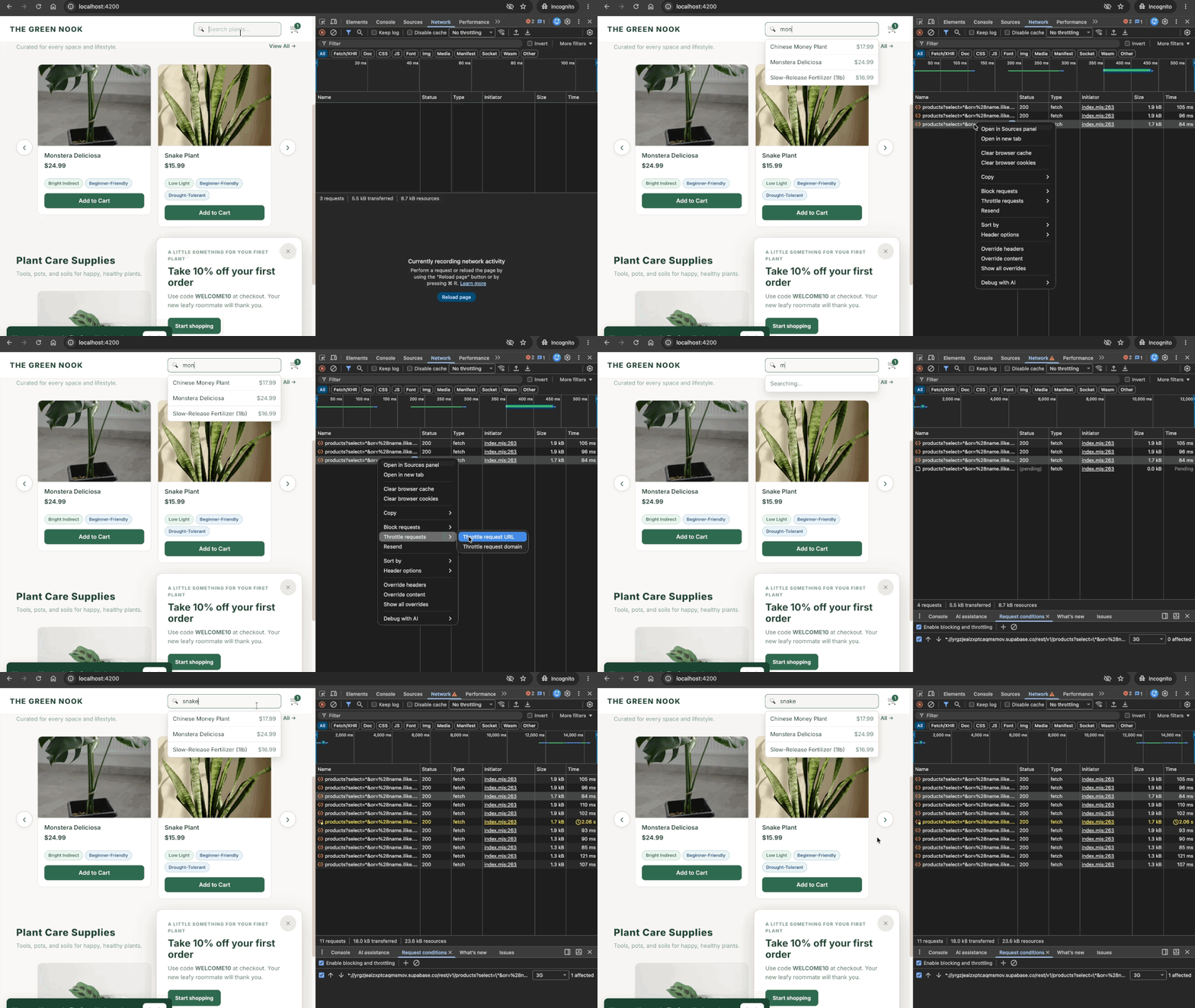
- Open the app and, in browser DevTools, enable a throttled network profile such as Fast 3G.
- In the header search box, quickly type a short query and then extend or replace it — for example type
monand then highlight it to replace it withsnake. - Repeat with a few different search terms if needed.
- Observe that the suggestions may display results for an earlier query instead of the text currently in the input.
- Open the app on a normal network profile or with a stable connection.
- Type a new query in the header search box.
- Watch the suggestions update as each character is entered.
- Observe that the visible suggestions remain consistent with the latest text and do not lag behind the current query.
- Header-search suggestions always correspond to the text currently in the input, regardless of request order or network latency.
- Responses from stale (superseded) requests are discarded and never overwrite newer results.
- Behavior is verified under a throttled network profile (e.g., Fast 3G) with rapid typing.
- No new console errors or unhandled promise rejections introduced by the fix.